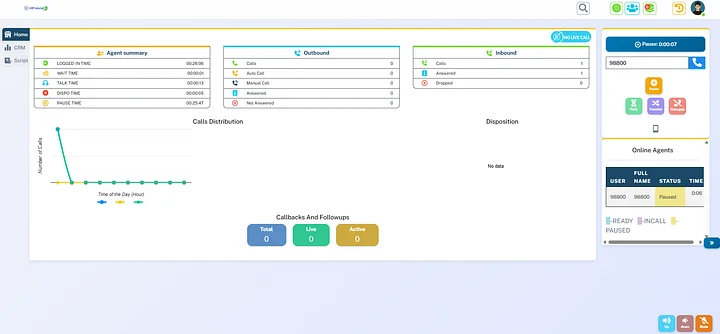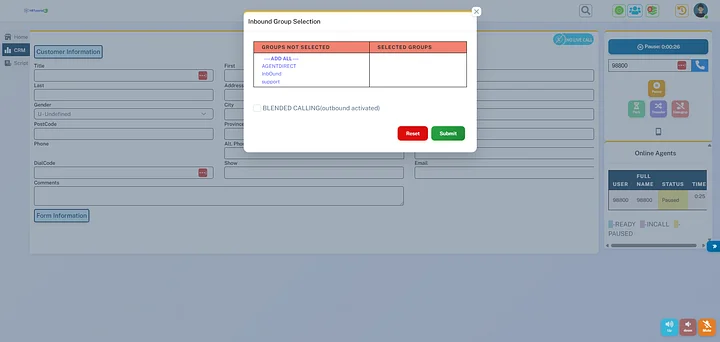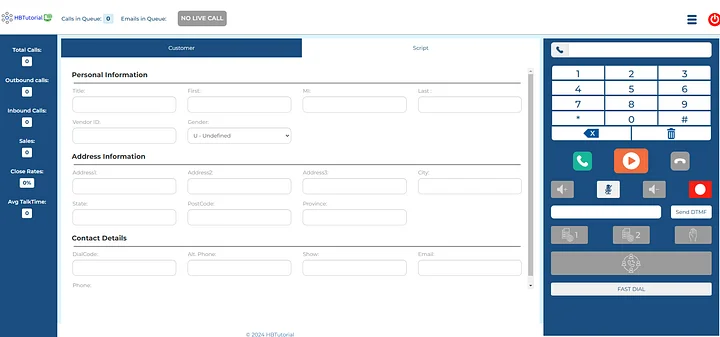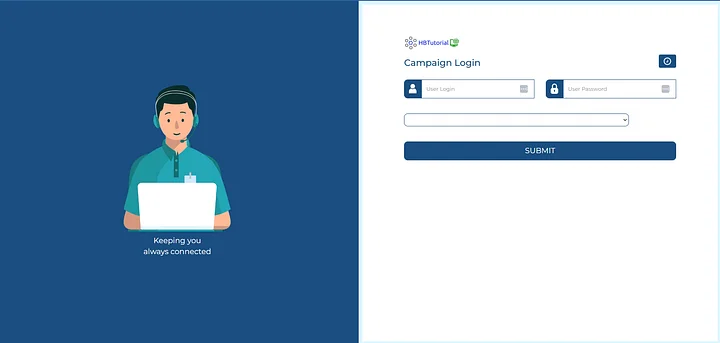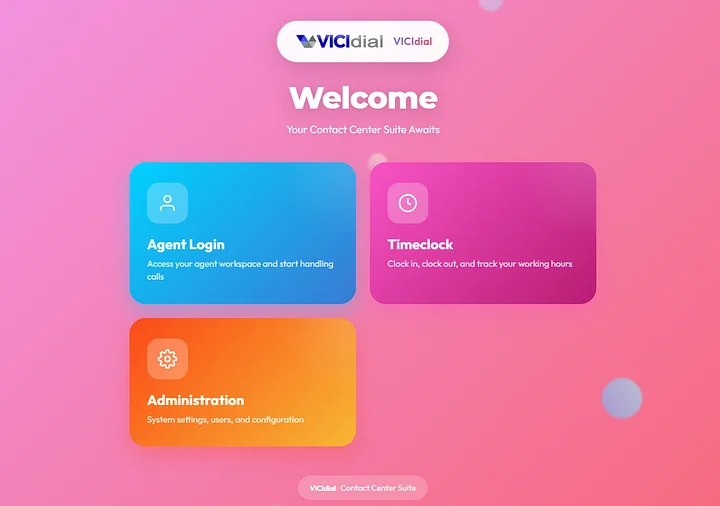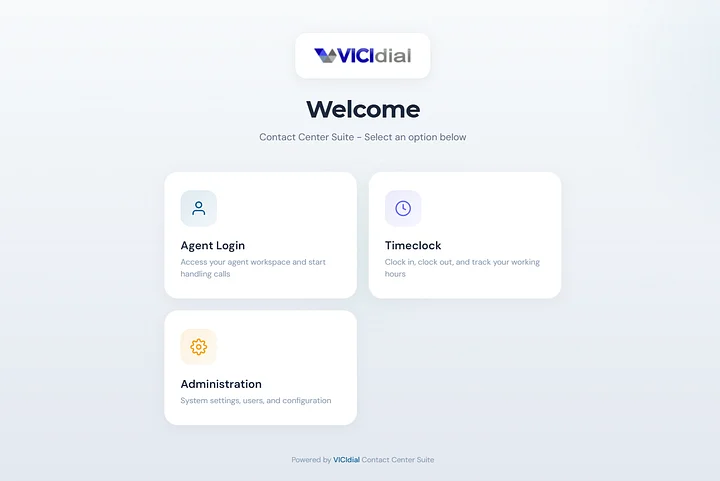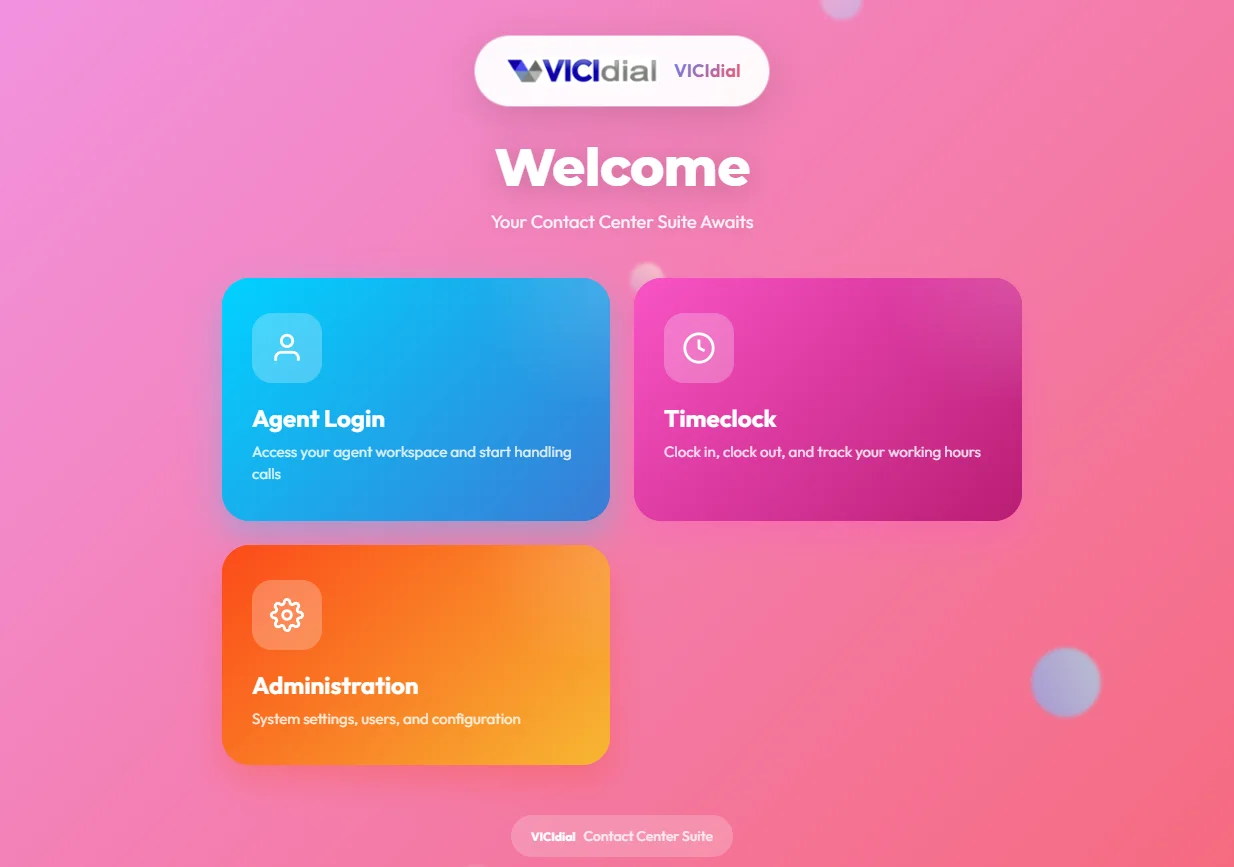
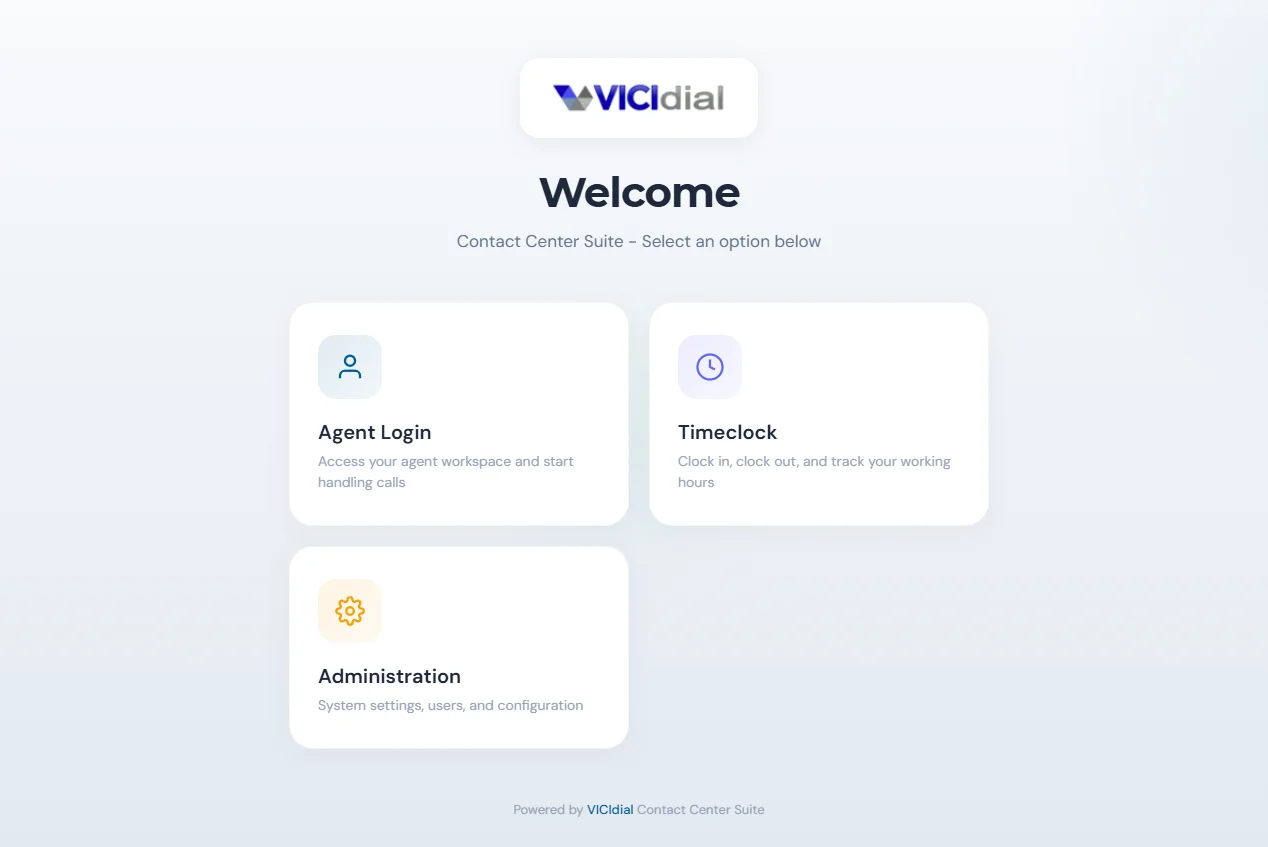
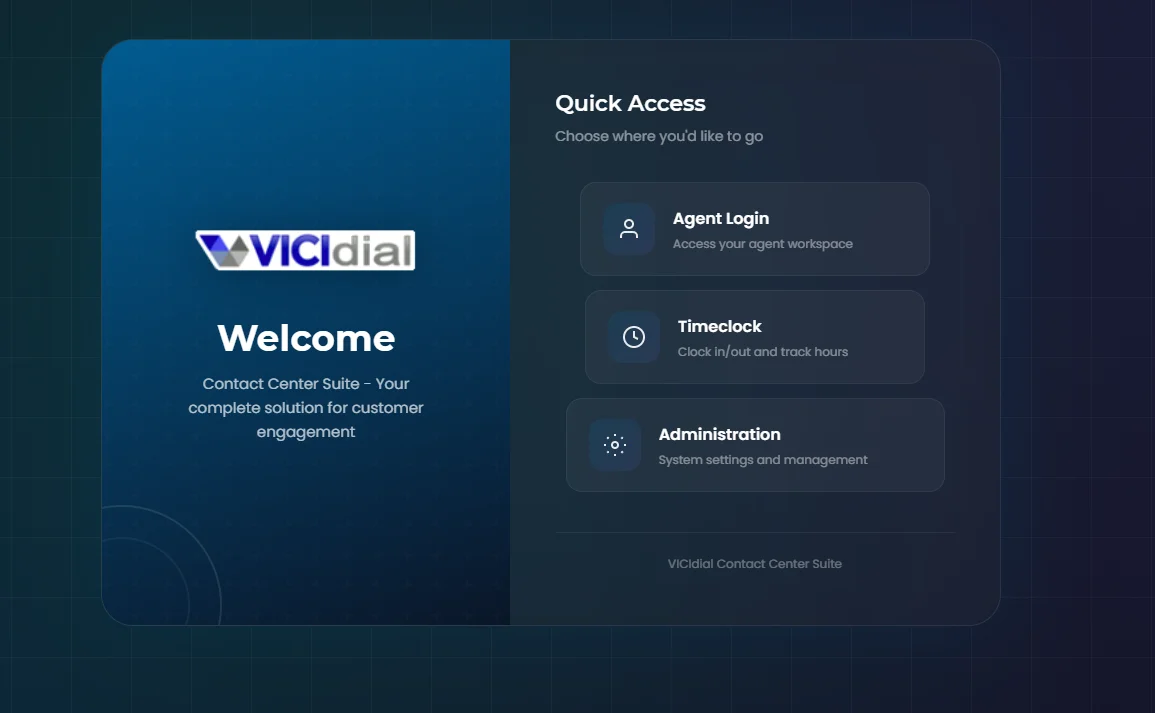
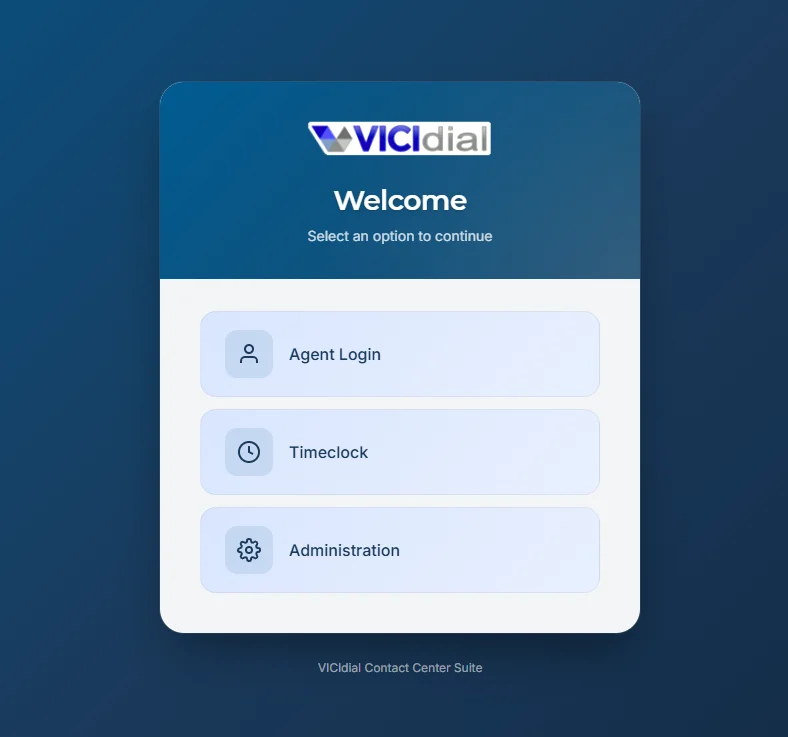
Vicidial Welcome Page Custom Design for Vicidial Theme and old Vicidial
Below is a clean tutorial-style description + step-by-step guide you can use to custom design the VICIdial welcome/login page for both your custom theme and old/default VICIdial, specifically by updating files inside the vicidial/ folder (web root).
Description (for your doc / tutorial)
This guide shows how to customize the VICIdial Welcome Page (login screen / landing page) by editing the web files inside the vicidial/ folder. You’ll learn where the welcome page files live, how to back them up, how to apply a custom HTML/CSS design (logo, colors, buttons, background), and how to make the changes work for both custom VICIdial themes and the old/default VICIdial UI without breaking upgrades.
What you can customize
-
Logo (top-left / centered)
-
Background color or background image
-
Login box design (rounded corners, shadow, layout)
-
Fonts and colors
-
Welcome text and links (Support, Docs, Privacy, etc.)
-
Footer branding (“Powered by…”, your company name)
Step-by-step: Update the Welcome Page in vicidial/ folder
1) Find the VICIdial web folder
Most common locations:
-
/var/www/html/vicidial/
-
/srv/www/htdocs/vicidial/ (some older builds)
Confirm using:
-
Open your browser: http://YOURSERVERIP/vicidial/
-
Or check your Apache/Nginx document root.
2) Backup first (VERY IMPORTANT)
Inside the server, run:
This gives you an instant rollback if anything breaks.
3) Identify which “welcome page” you are editing
Depending on your setup, your welcome/login page is usually one of these:
Common files to check inside vicidial/:
you can now upload your new welcome.php
you use winscp or sftp
4) Permissions (avoid blank page / forbidden)
Make sure files are readable by Apache:
(If your web user is www-data, use that instead.)
5) Test + clear cache
-
Hard refresh: CTRL+F5
-
If the design doesn’t load, check:
-
File path is correct
-
Permissions are correct
-
Browser DevTools → Network → style.css loaded or 404
-
6) Rollback plan (fast restore)
If anything breaks: