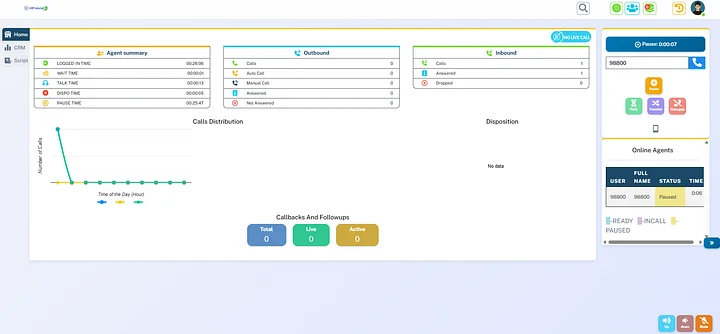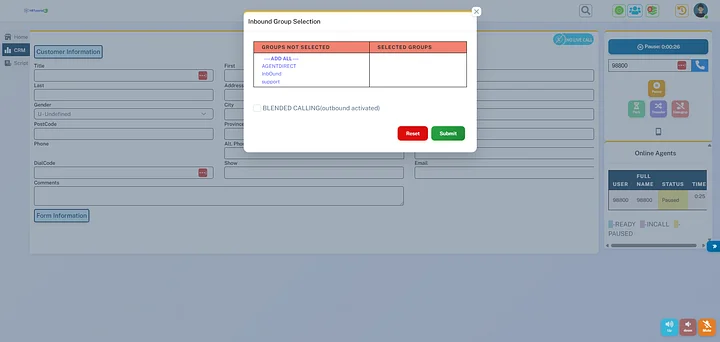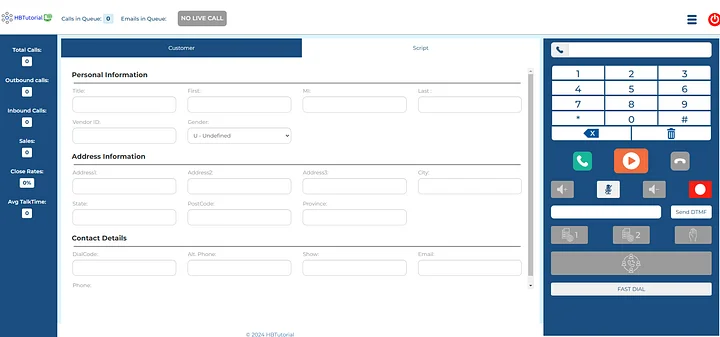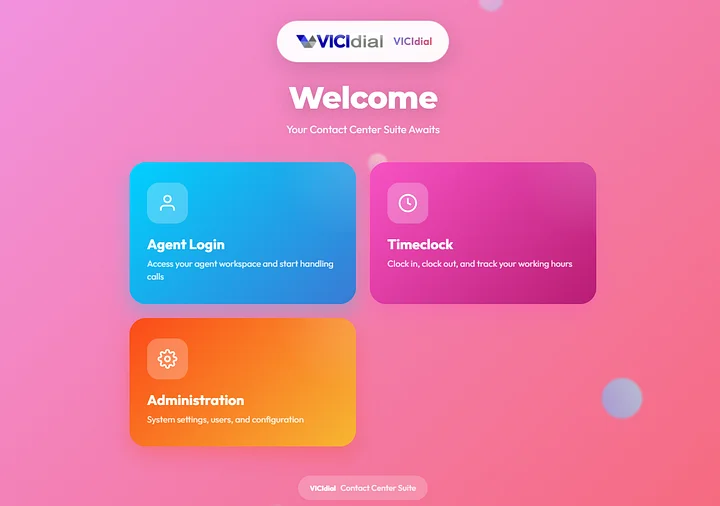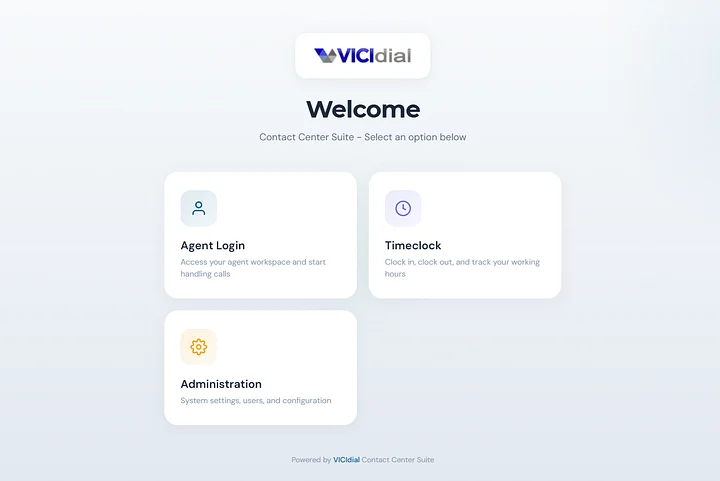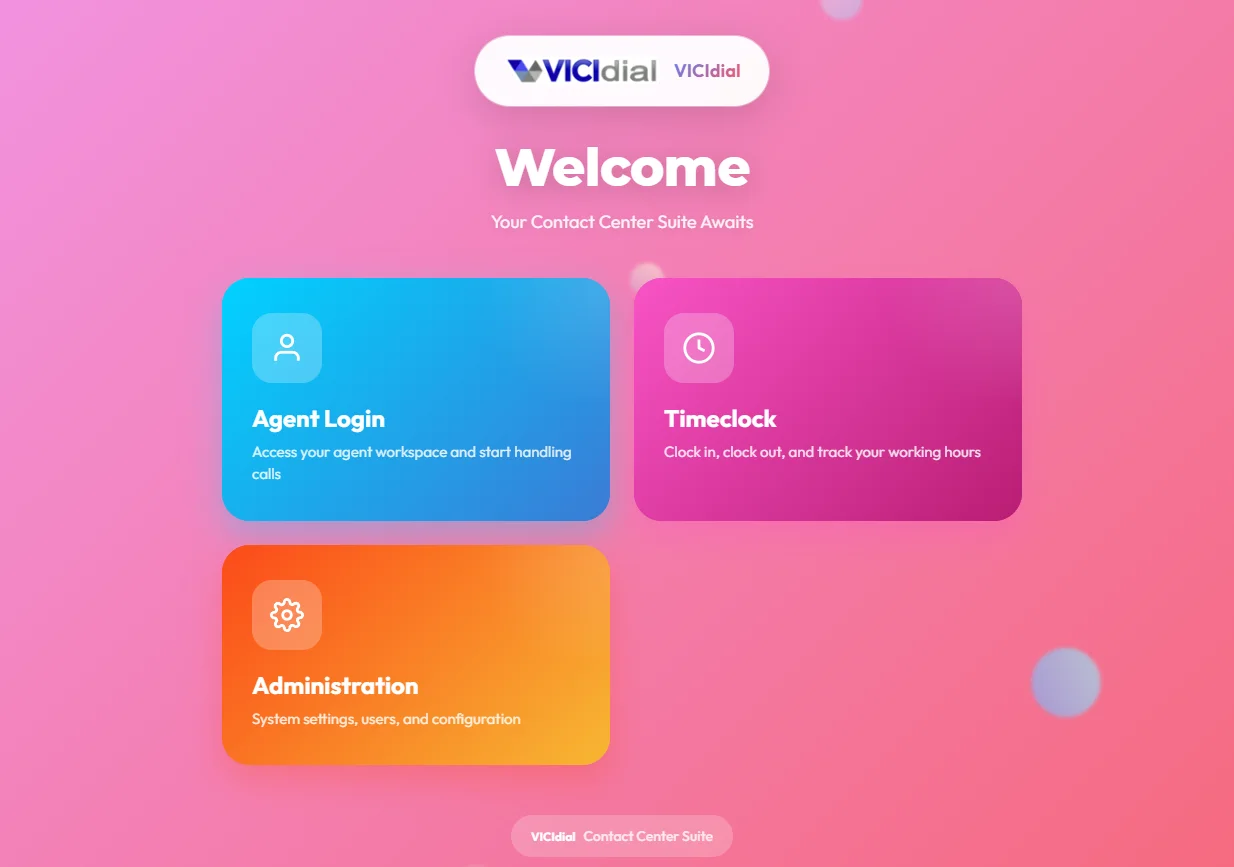
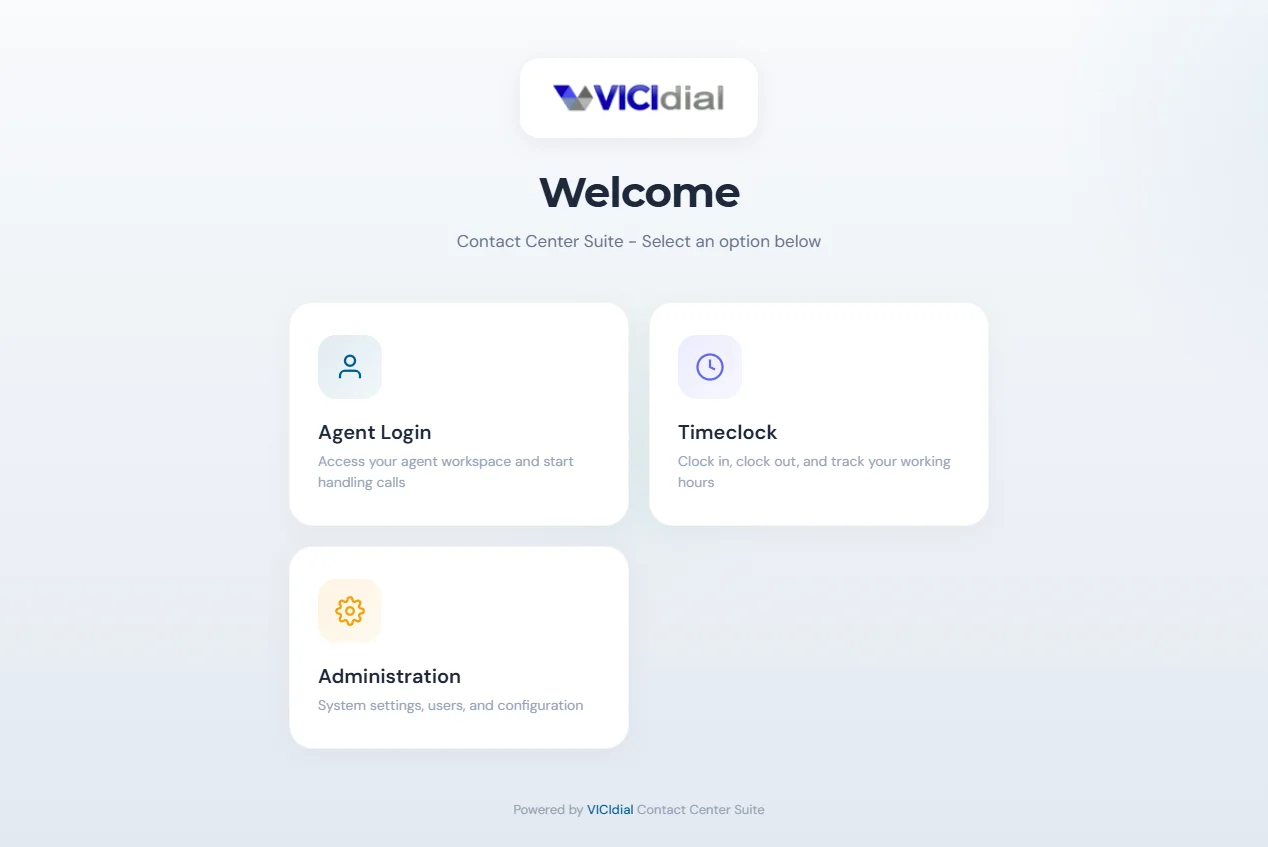
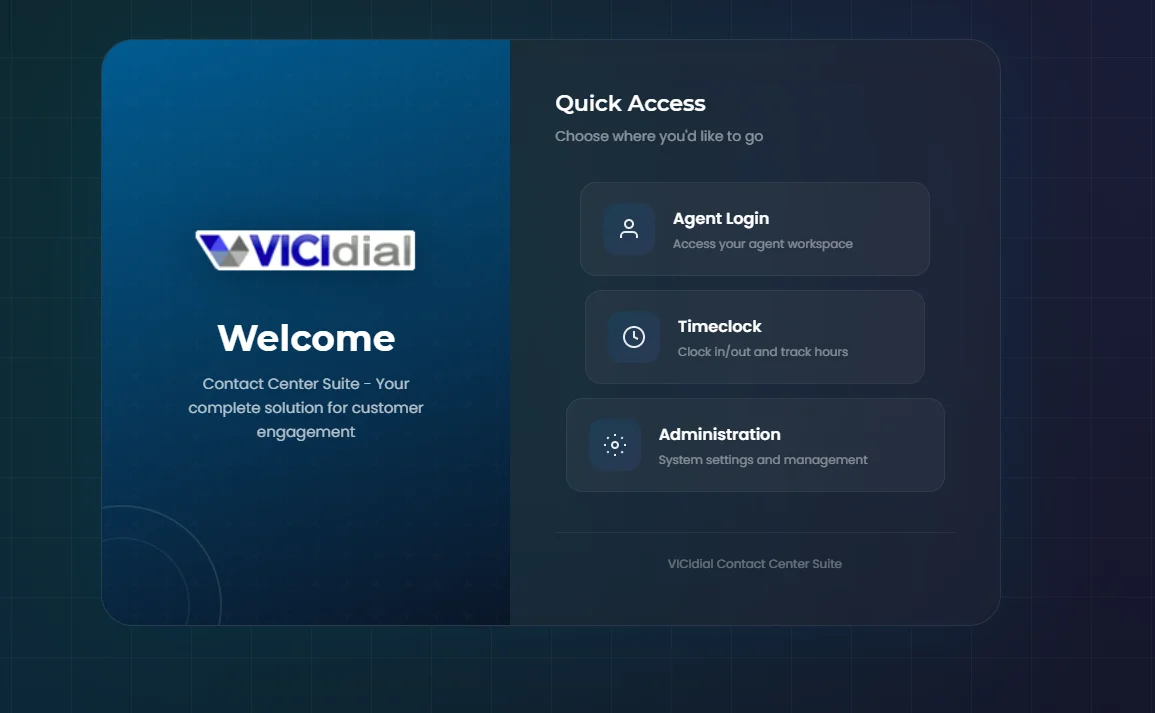
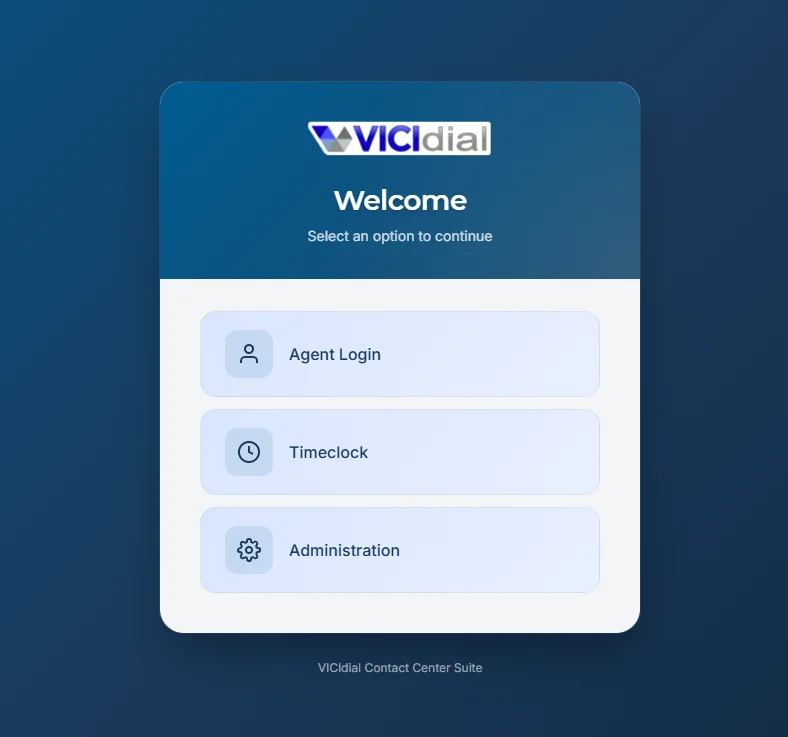
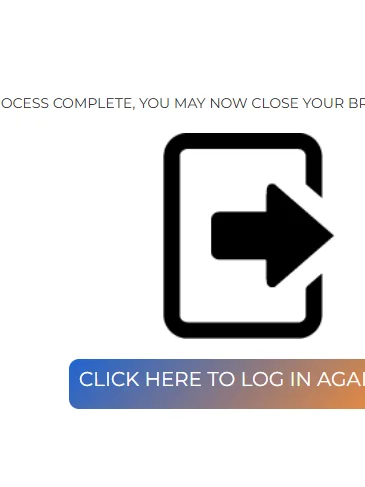
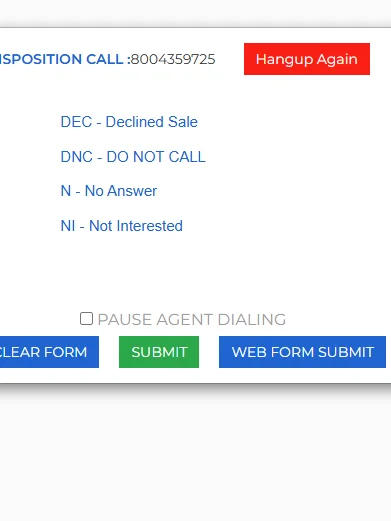
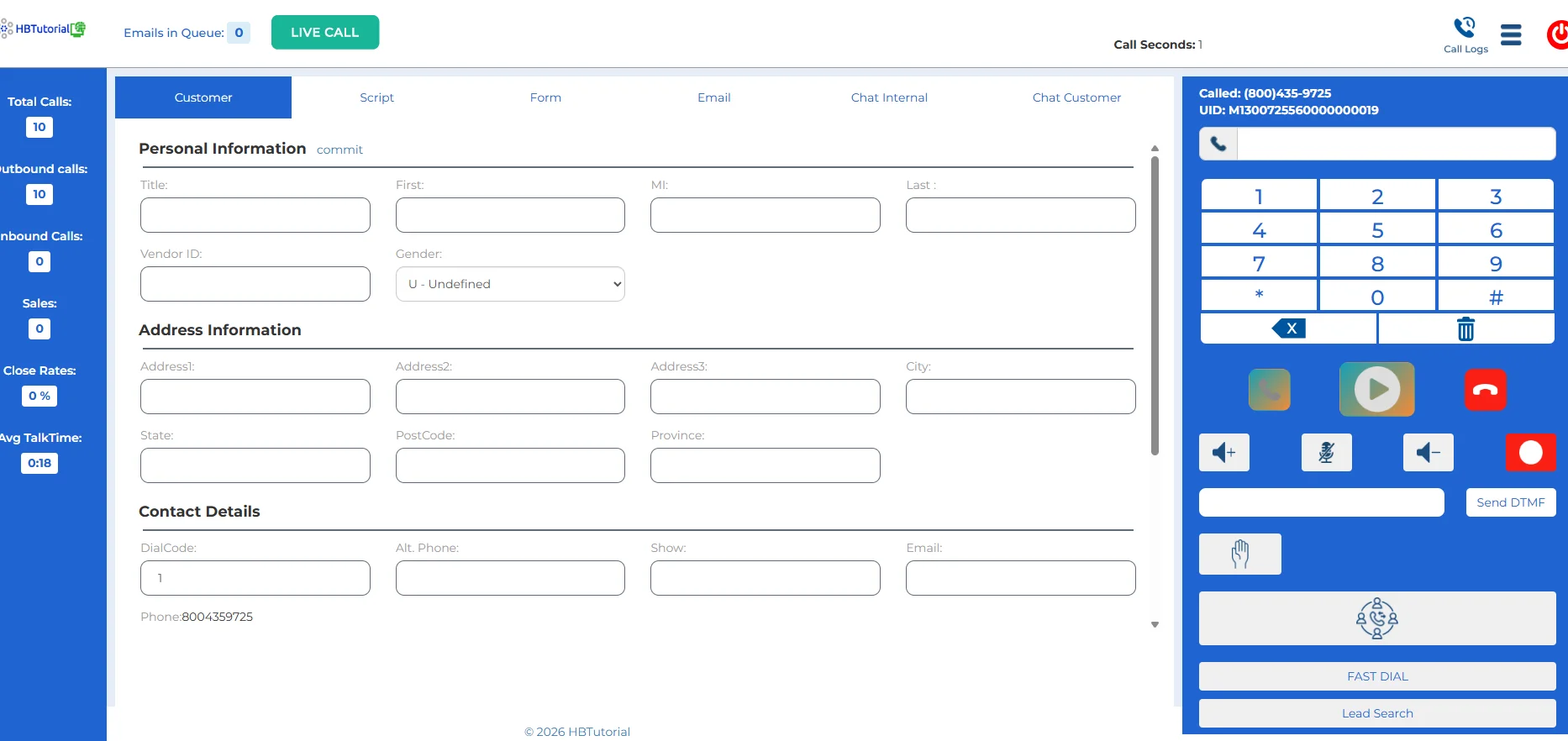
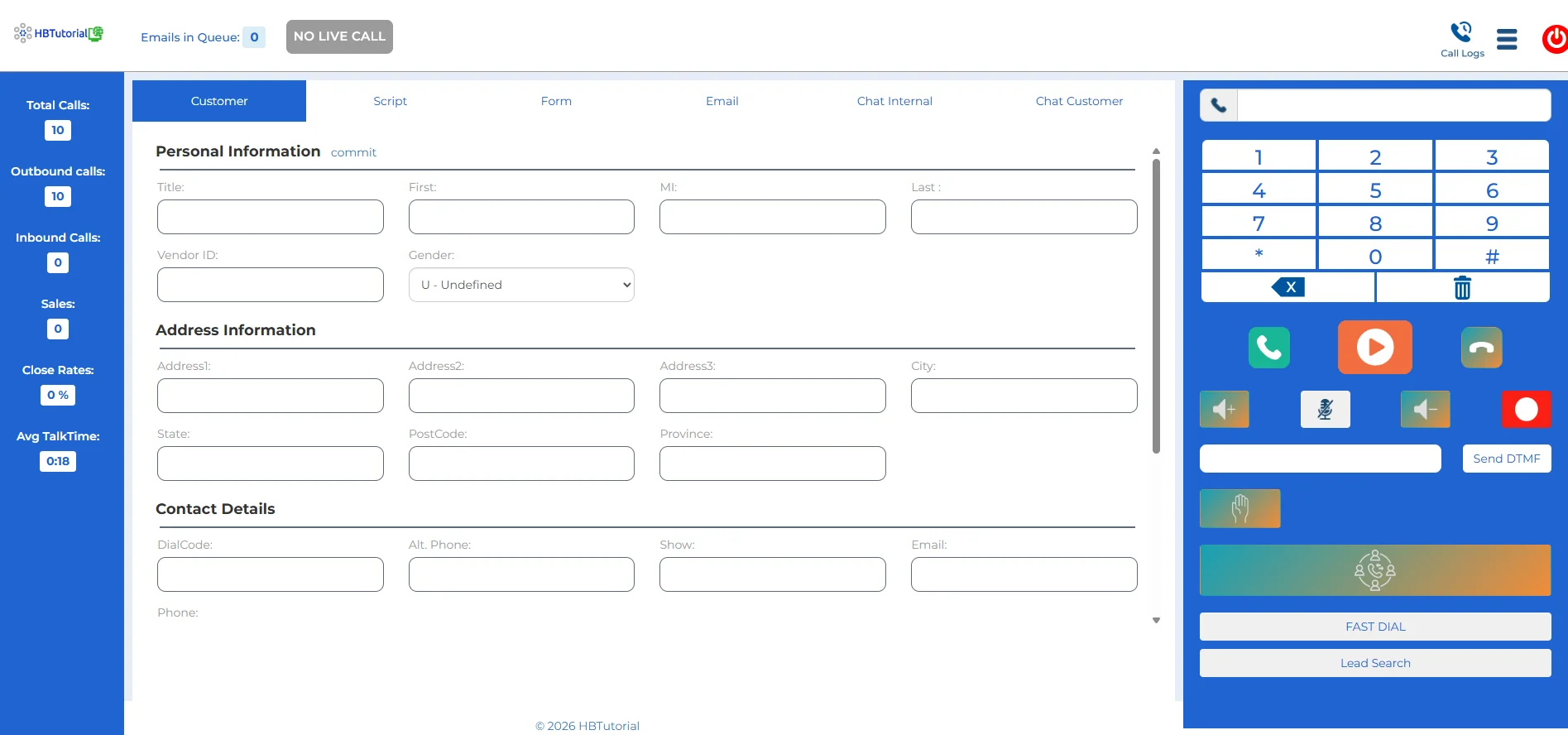
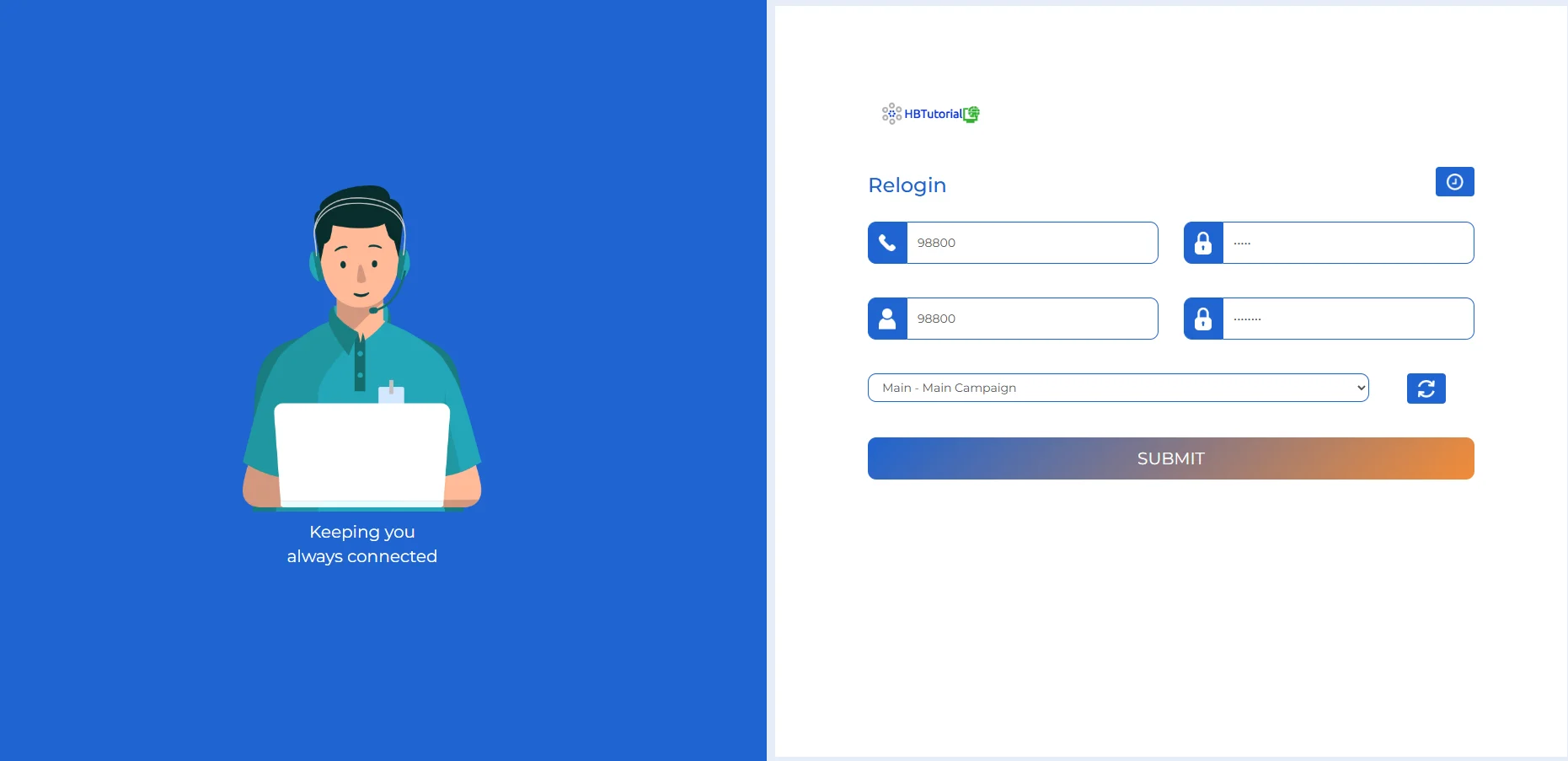
Vicidial Agent Theme /Custom realtime repotrs and Custom Welcome Page
Vicidial Theme Agent 2023 works on latest vicidial svn running.
Works with vicibox 12 and latest svn
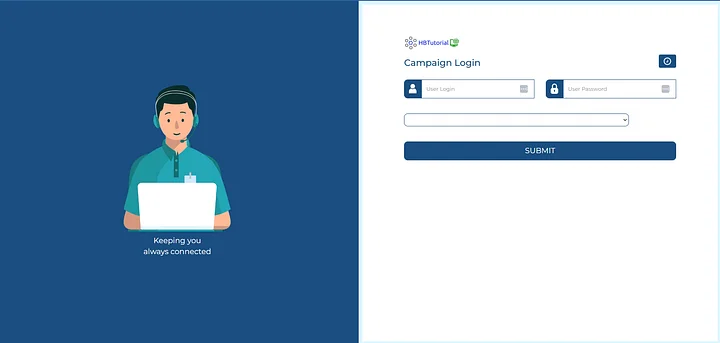
Below is a clean tutorial-style description + step-by-step guide you can use to custom design the VICIdial welcome/login page for both your custom theme and old/default VICIdial, specifically by updating files inside the vicidial/ folder (web root).
Description (for your doc / tutorial)
This guide shows how to customize the VICIdial Welcome Page (login screen / landing page) by editing the web files inside the vicidial/ folder. You’ll learn where the welcome page files live, how to back them up, how to apply a custom HTML/CSS design (logo, colors, buttons, background), and how to make the changes work for both custom VICIdial themes and the old/default VICIdial UI without breaking upgrades.
What you can customize
-
Logo (top-left / centered)
-
Background color or background image
-
Login box design (rounded corners, shadow, layout)
-
Fonts and colors
-
Welcome text and links (Support, Docs, Privacy, etc.)
-
Footer branding (“Powered by…”, your company name)
Step-by-step: Update the Welcome Page in vicidial/ folder
1) Find the VICIdial web folder
Most common locations:
-
/var/www/html/vicidial/
-
/srv/www/htdocs/vicidial/ (some older builds)
Confirm using:
-
Open your browser: http://YOURSERVERIP/vicidial/
-
Or check your Apache/Nginx document root.
2) Backup first (VERY IMPORTANT)
Inside the server, run:
This gives you an instant rollback if anything breaks.
3) Identify which “welcome page” you are editing
Depending on your setup, your welcome/login page is usually one of these:
Common files to check inside vicidial/:
you can now upload your new welcome.php
you use winscp or sftp
4) Permissions (avoid blank page / forbidden)
Make sure files are readable by Apache:
(If your web user is www-data, use that instead.)
5) Test + clear cache
-
Hard refresh: CTRL+F5
-
If the design doesn’t load, check:
-
File path is correct
-
Permissions are correct
-
Browser DevTools → Network → style.css loaded or 404
-
6) Rollback plan (fast restore)
If anything breaks:
Non-Refundable Policy
All sales of Vicidial themes are final. Due to the digital nature of the product, refunds, cancellations, or exchanges will not be provided once the theme has been delivered or downloaded.
If you encounter any issues with the theme, our support team is available to assist in resolving technical problems.